

How to Extract Data from Supplier Scans for CRM Quote…
26 Oct, 2026
A supplier emails you a price sheet. But there is...
Updated: 26th October, 2026
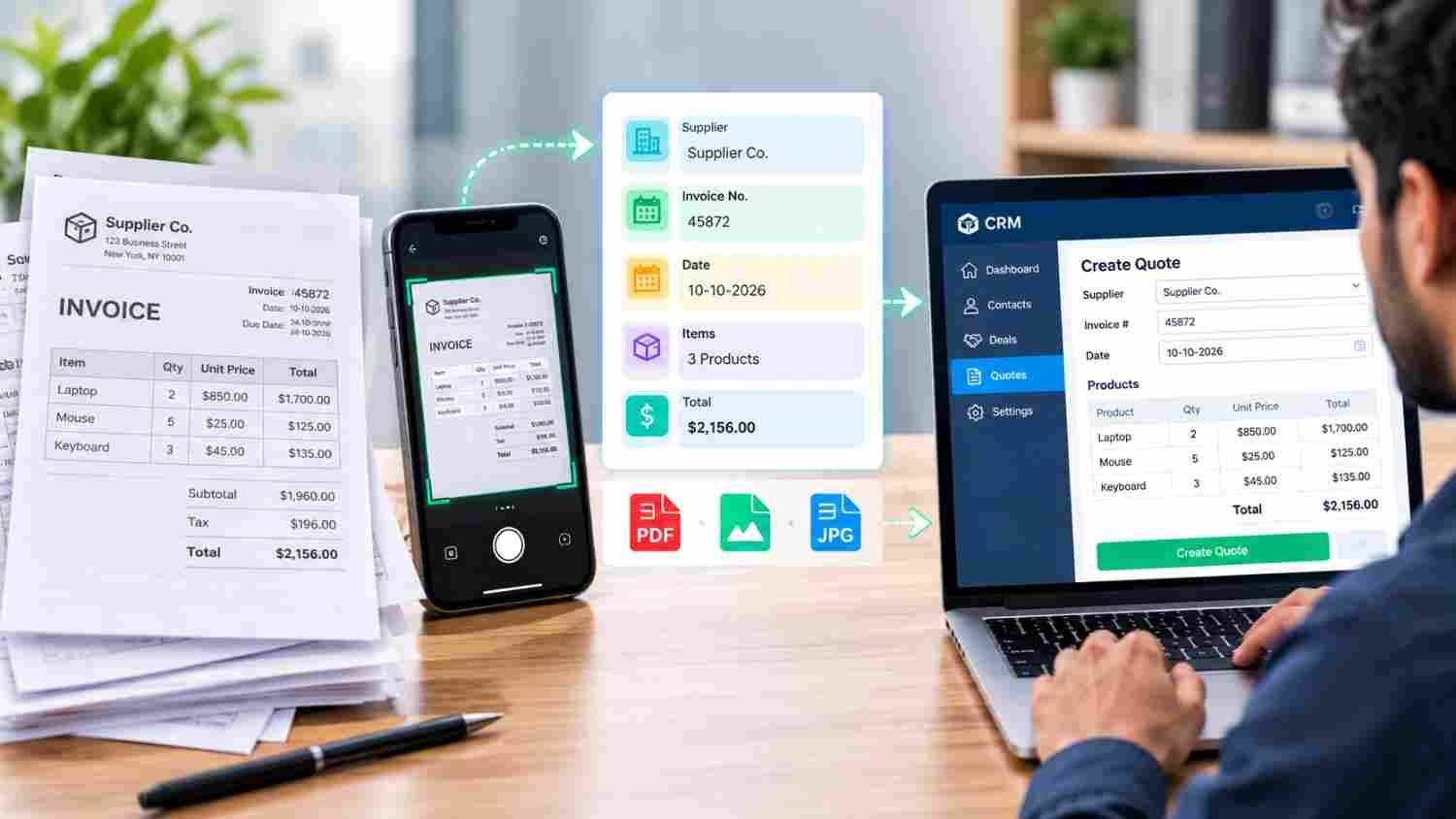
A supplier emails you a price sheet. But there is a problem. It is a blurry scan, a photograph of a printed page, or a PDF from which you cannot copy the text.
Supplier documents often contain important information such as product names, SKUs, unit prices, minimum order quantities, and payment terms. Before this information can be used to prepare a sales quotation in your CRM, it needs to be converted into an editable format.
Retyping everything manually takes time, and even a small data-entry mistake can affect the final quotation.
A more efficient approach is to use Optical Character Recognition (OCR) to extract text from scanned documents, verify the information, and prepare it for your CRM quotation workflow.
In this guide, we will walk through a simple, five-step process to help businesses reduce manual data entry and prepare quotations more efficiently.
Note: This guide is intended for businesses using CRM platforms that do not offer built-in text extraction from scanned documents or images.
Manual data entry may seem straightforward when a supplier sends a short price list. However, the process becomes time-consuming when documents contain dozens or hundreds of product entries.
It also introduces the risk of human error. A misplaced decimal point, an incorrect SKU, or a missing digit can change the price of a product or cause confusion during order processing.
For example, a supplier’s unit price of ₹1,250 could accidentally be entered as ₹12,500. Similarly, an incorrect product code could lead to the wrong item being included in a quotation.
Research on data-entry accuracy has also highlighted the risk of manual errors. A study published on ScienceDirect examined different data-entry methods and reported errors in manually entered values. Before publishing any specific statistics from this research, verify the original study and its findings.
The objective is not to eliminate human review entirely. It is to reduce repetitive typing so that your team can spend more time checking information, preparing accurate quotations, and responding to customers.
OCR technology can recognise printed characters in images and scanned documents and convert them into editable text. Depending on the tool, it may also help preserve tables and document formatting.
Here are five steps you can follow to prepare supplier data for CRM quote creation.
Before extracting text, make sure the supplier document is readable.
Check the following:
If you have a printed price sheet, place it on a flat surface and take a photograph in good lighting. Avoid shadows, glare, tilted images, and folded pages.
If a document is too blurry to read, ask the supplier for a clearer copy whenever possible.
Good-quality input improves the chances of accurate text extraction and reduces the amount of correction required later.
Once your document is ready, upload it to an OCR-based image-to-text converter.
OCR tools can process common formats such as JPG, PNG, and PDF. Some tools also support multiple pages, different languages, and formatted text extraction.
When selecting an OCR tool, look for these features:
For this workflow, an online tool such as Imagetotext.cc can be used as an example of an OCR-based text extraction.
Open the tool, upload your document, and choose the extraction mode that suits the file.
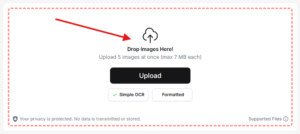
If the document contains a table, use a formatted extraction option where available. For a simple text document, plain-text extraction may be sufficient.
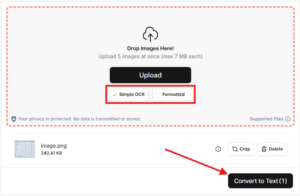
Some tools also let you crop an image before processing it, which can help remove unnecessary content.
After conversion, copy the extracted text or download it in a supported format.
Important: OCR output is a starting point, not a verified record. Product codes, quantities, and prices may still be misread, especially when the source document is unclear.
This is one of the most important steps in the entire workflow. Before importing information into your CRM, compare the extracted text with the original supplier document.
Start by organising the information into a clean table. Depending on your requirements, useful columns may include:
| Field | Information to Capture |
|---|---|
| Product name | Exact supplier product description |
| SKU or product code | Unique product identifier |
| Unit price | Supplier’s quoted price |
| Currency | INR, USD, or another currency |
| Unit of measure | Piece, box, kilogram, or other unit |
| Minimum order quantity | Supplier’s minimum purchase requirement |
| Validity period | Period for which the price applies |
| Document date | Date of the supplier price sheet |
Next, review the extracted information carefully.
Where possible, use spreadsheet formulas to check calculations and identify unusual values. For example, a unit price that differs significantly from the previous supplier price may deserve a second review.
Finally, align the table columns with the fields supported by your CRM. This makes importing the data easier and reduces the need to reorganise it later.
After checking the extracted information, choose an appropriate method to transfer it into your CRM.
The right approach depends on the number of products, your CRM’s capabilities, and how frequently you process supplier price sheets.
Option A: Manual entry
For a quotation containing only a few line items, manually entering the verified product information may be the simplest option.
Copy the required product details into the quotation editor and double-check the quantities, prices, and totals before saving.
Option B: CSV or Excel import
If your CRM supports importing product records or quotation line items, a spreadsheet can help you process larger datasets.
Organise the information into the required columns, save it in the supported file format, and follow your CRM’s import instructions.
Before importing the complete dataset, test a small sample to confirm that product names, prices, and other fields map correctly. Keep in mind that importing products into a CRM is not necessarily the same as importing quotation line items into an existing quote.
Option C: CRM or integration-based automation
Businesses that process supplier price sheets regularly may benefit from a more automated workflow.
Depending on the available integrations, the process may involve extracting text, validating the data, mapping fields, and transferring approved information into the CRM.
For example, businesses using Groweon CRM can explore its quotation-building capabilities to manage the quotation preparation process. Groweon’s Quotation Builder can support quotation creation, while the availability of direct OCR extraction, automated field mapping, or document-to-quote integration should be confirmed for the specific setup.
The key is to distinguish between automating quotation creation and automating the entire document extraction process. The latter requires compatible OCR and integration capabilities.
For occasional quotations, manual entry may be sufficient. For recurring supplier workflows, a structured import process or compatible automation can reduce repetitive work and improve consistency.
Once the supplier data is available in your CRM, the next step is to prepare the customer-facing quotation.
Extracting supplier prices does not automatically produce a complete sales quote. You still need to apply your pricing rules and confirm the commercial details.
Before sending the quotation, check the following:
Pay particular attention to the difference between supplier cost and customer selling price. Your CRM quotation should reflect your approved pricing strategy rather than simply copying the supplier’s price sheet.
A final review helps prevent errors from carrying over into customer communications and subsequent order processing.
OCR and CRM software solve different parts of the same problem.
OCR converts information from scanned documents into editable text. A CRM helps teams organise business information and manage processes such as sales follow-ups, customer interactions, and quotation preparation.
When these capabilities are connected through a compatible workflow, businesses can reduce repetitive data entry and move more quickly from receiving supplier information to preparing a customer quotation.
However, the benefits depend on document quality, extraction accuracy, field mapping, and the level of automation available. Human verification remains important, particularly when quotations involve large values, complex pricing, or multiple product variants.
Preparing a quotation from a scanned supplier price sheet does not have to involve retyping every line manually.
Start with a clear document, extract the text using OCR, organise the information into a structured table, and verify every important field. Then transfer the approved data into your CRM using manual entry, an available import feature, or a compatible automation workflow.
For businesses that prepare quotations regularly, combining reliable text extraction with an organised CRM process can help reduce repetitive work and improve consistency.
The most important rule is simple: automate the repetitive work, but verify the numbers before sending the quote.
A well-structured workflow helps your sales team spend less time entering data and more time preparing accurate quotations for customers.

26 Oct, 2026
A supplier emails you a price sheet. But there is...

26 Oct, 2026
Summary Choose CRM Software according to your sales process, business...

23 Oct, 2026
Summary Compare 10 field service and field workforce software options...

23 Oct, 2026
Summary Agentic AI enables systems to plan and execute tasks...

23 Oct, 2026
Summary Traditional CRM helps businesses organise customer data, manage leads,...